Product Tutorial
One-Time Setup, Permanent Connection
Once Wi-Fi is set up, the device will automatically remember the settings. It will connect automatically whenever it’s within signal range, so you don’t need to set it up repeatedly.
You only need to reconfigure the settings if you change your Wi-Fi environment. We recommend this connection method as it can significantly reduce the time needed to sync with the device.
Wi-Fi Router Setup Precautions
To ensure the security of your data, this device does not support Wi-Fi routers configured with WPA (1st Generation).
Please ensure your Wi-Fi router is set to WPA2 (AES/CCMP) or higher (e.g., WPA3). Ensuring the correct security setting will provide a stable and secure connection for your health data monitoring.
Data Storage, View Anytime
The device takes measurements according to a set timed mode and securely stores the data.
You don’t need to keep the app open at all times; the next time you open it, it will automatically sync the latest data. This process may take a few moments, so please wait patiently.
Product Registration & Connection Guide
- Enter the product serial number
- Enter pet information
- Press the device power button and check that the indicator light is flashing rapidly
- Select the device from the search list to pair
- After successful connection, check if the light is slowly flashing
- Check whether the app shows “Connected”
- Connection complete
Connection Guide for Registered Products
- Open the app
- Press the device power button and check that the indicator light is flashing rapidly
- The app will automatically pair
- Check whether the app shows “Connected”
- Connection complete
Registration Process
❶ Tap “Register Now”

❷ Fill in the required information as prompted

❸ Check your email and enter the verification code
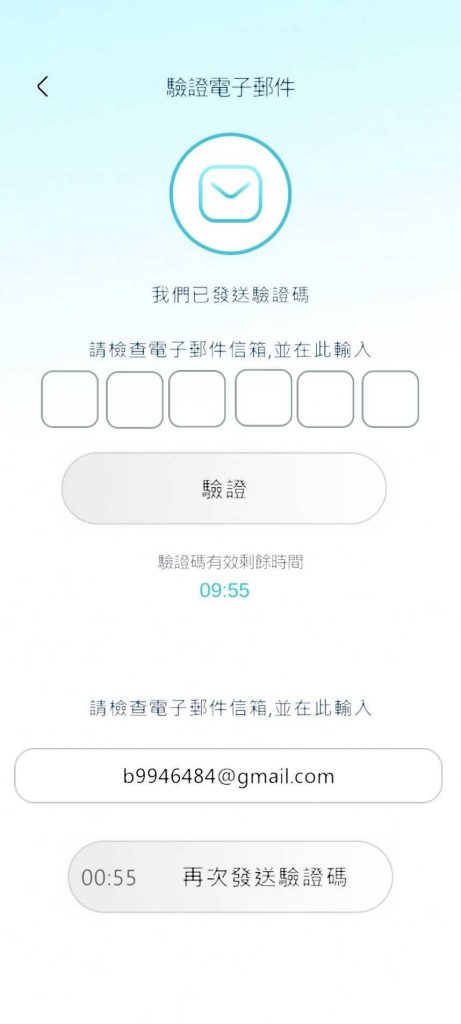
❹ Tap “Confirm”

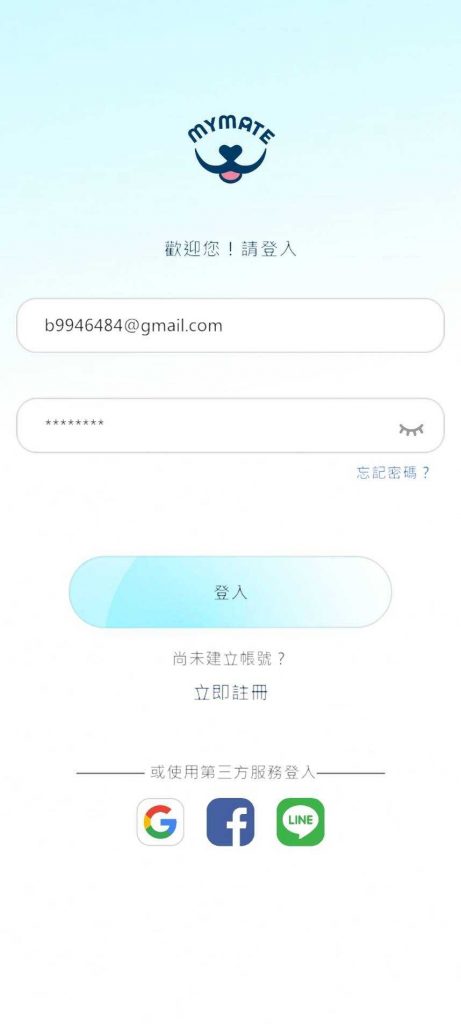
❺ Return to the login screen and tap “Login”
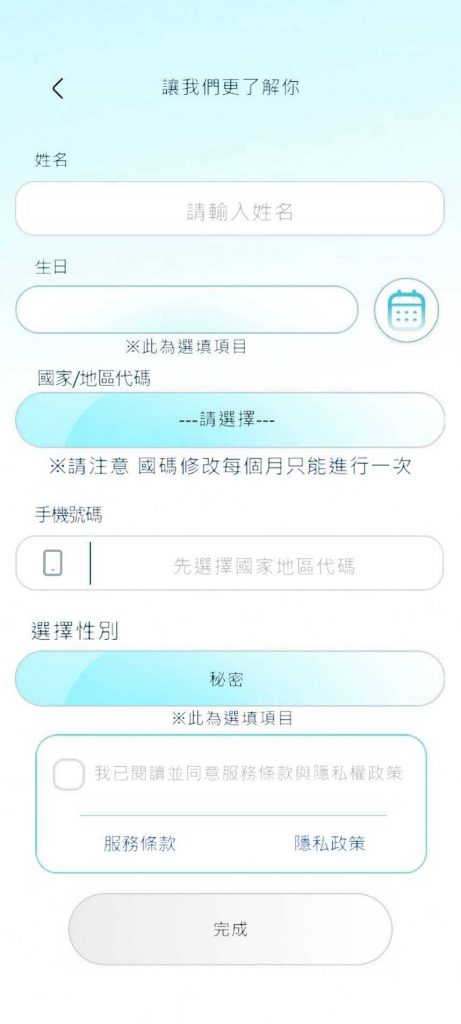
❻ Enter owner information
❼ Proceed to serial number input, Bluetooth, and Wi-Fi connection
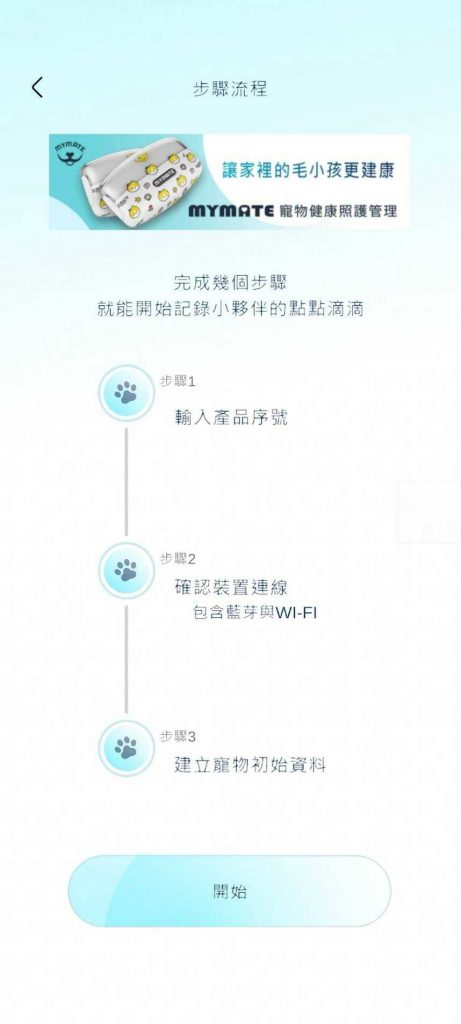
❽ Select whether you have purchased the product. If not, visit the official website to purchase
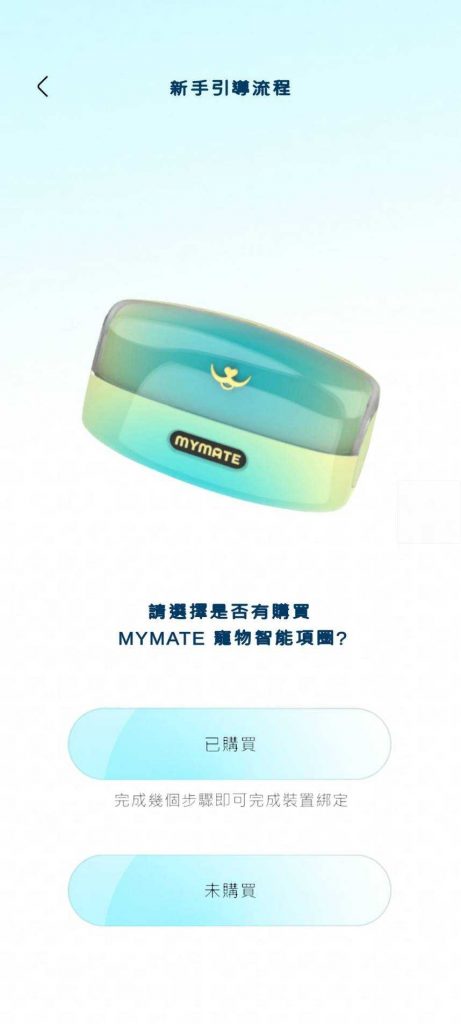
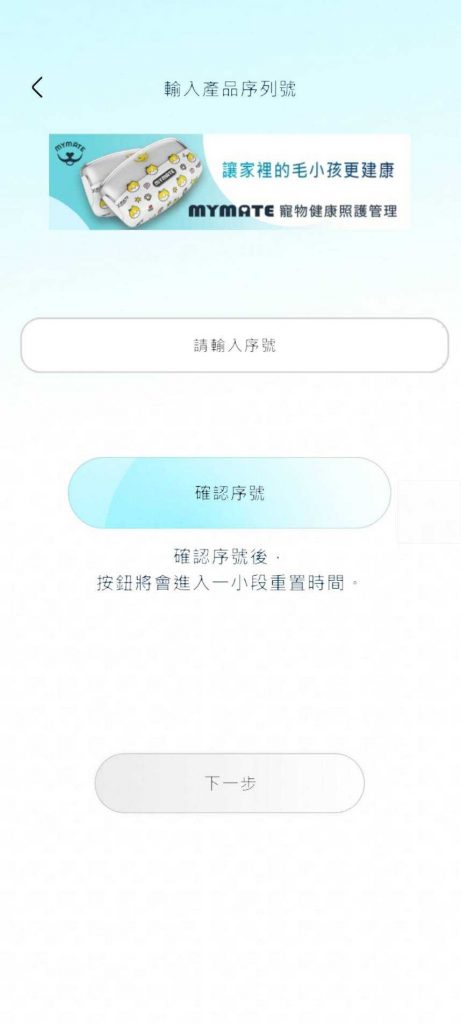
❾ Enter the product serial number
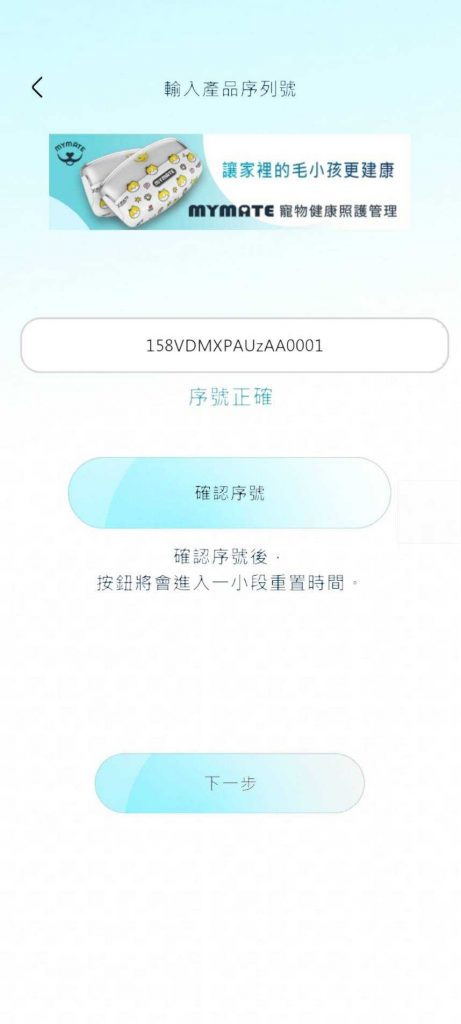
❿ After entering, tap “Verify Serial Number” and confirm that it’s correct
⓫ Connect device: tap “Search”
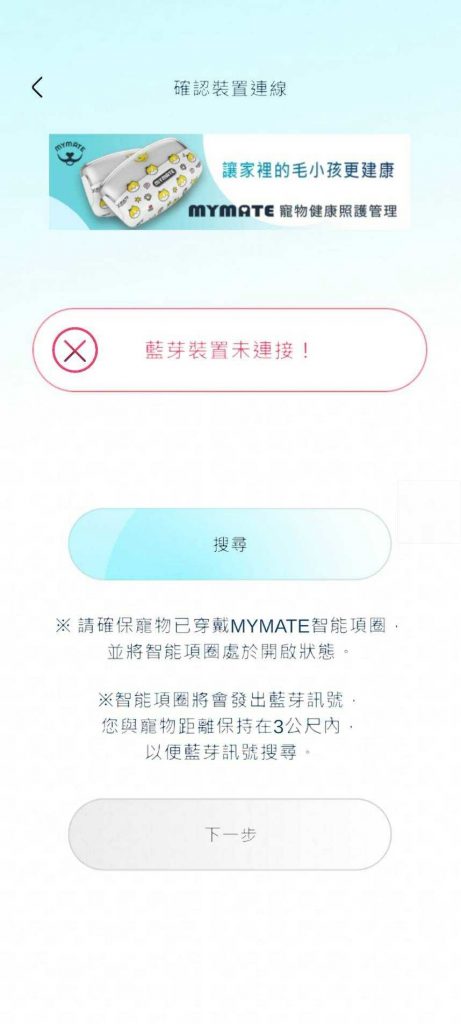
⓬ When the Bluetooth device appears, select it to connect
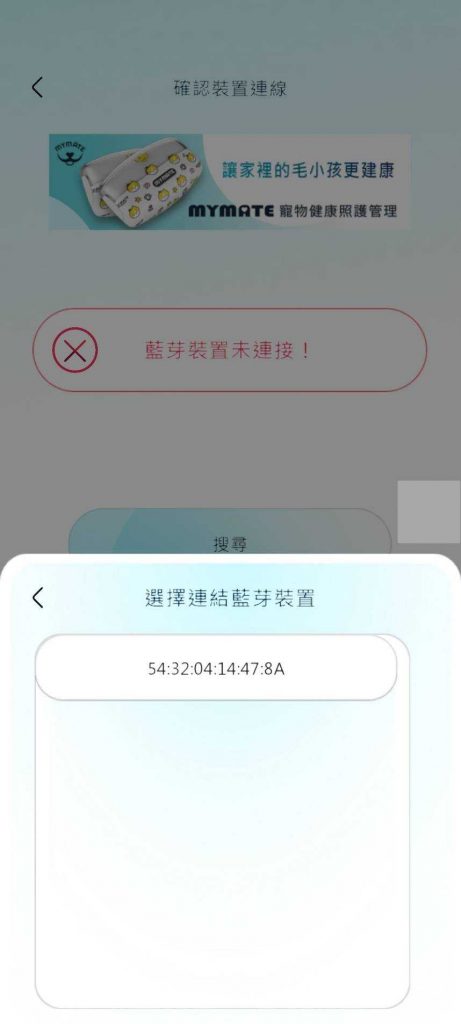
⓭ When binding is complete, tap “Next”
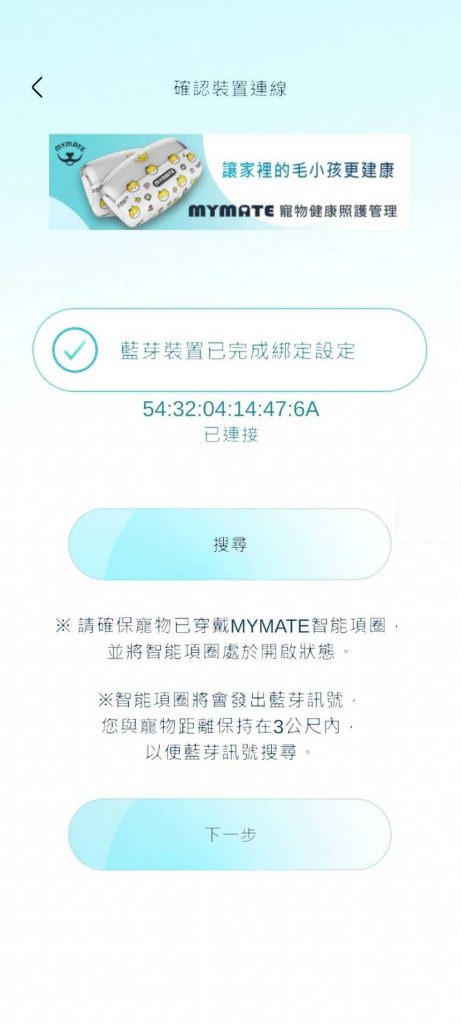
⓮ Wi-Fi connection: if Wi-Fi is available, tap “Set Wi-Fi”; if not, skip to ⓱
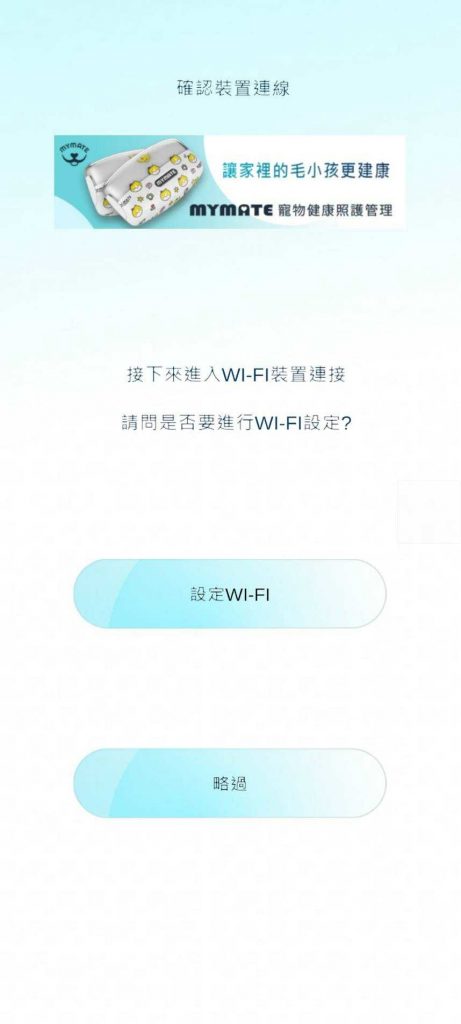
⓯ Tap “Set Wi-Fi”, then search for available Wi-Fi networks
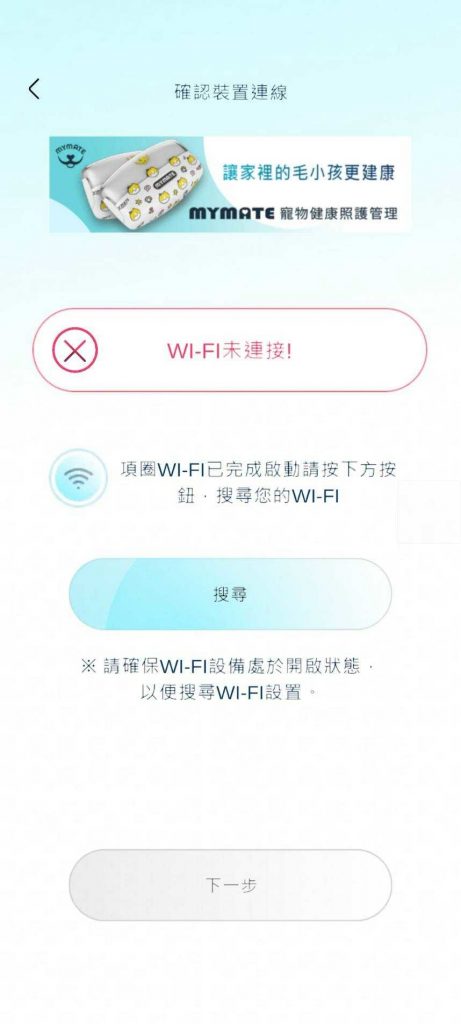
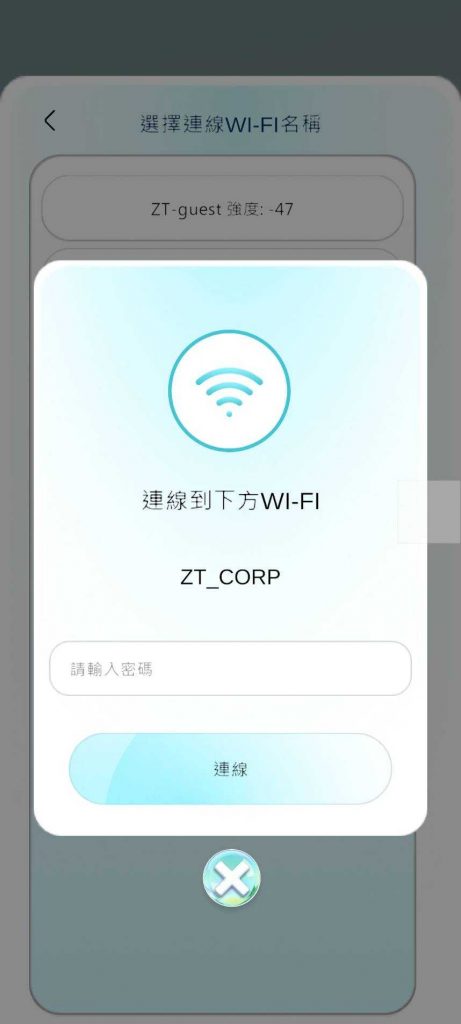
⓰ Select an available Wi-Fi, enter the password, and tap “Connect”
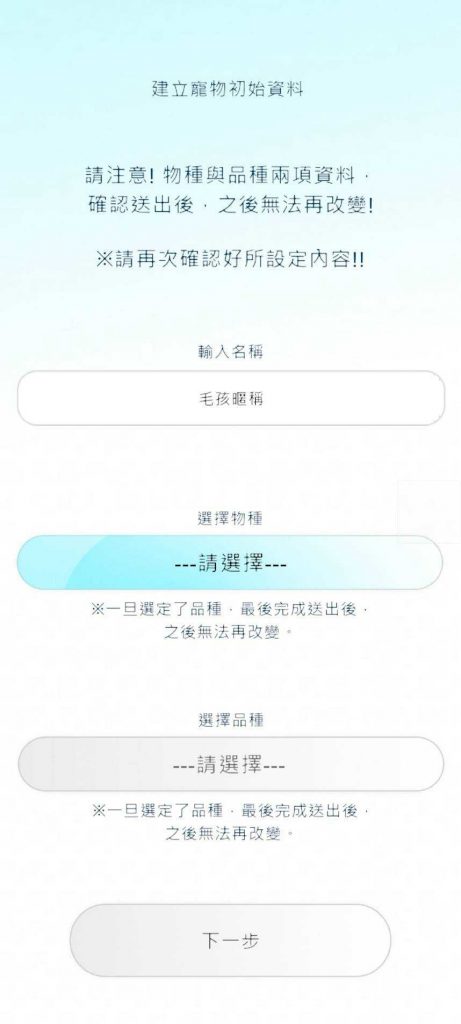
⓱ Create a pet profile
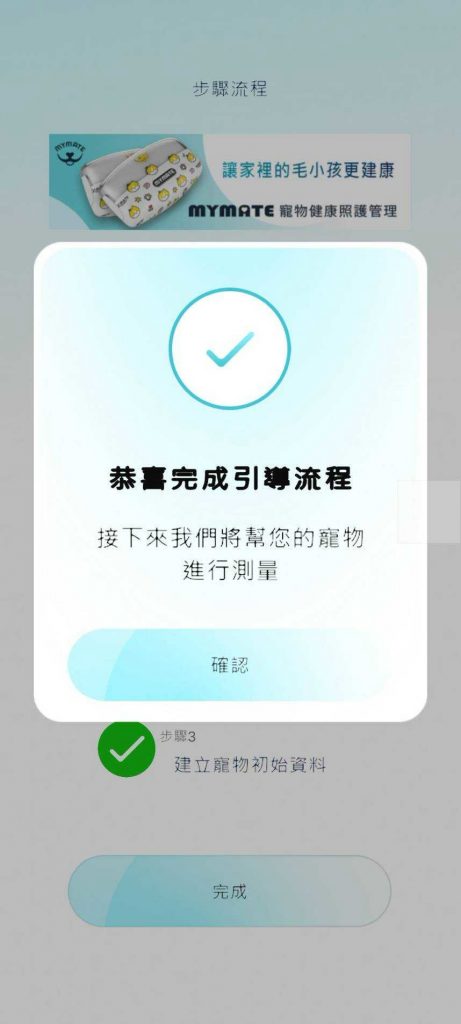
⓲ Registration complete, entering the app home screen
App Home – Instant Measurement
❶ On the home screen, tap “Measure Now”
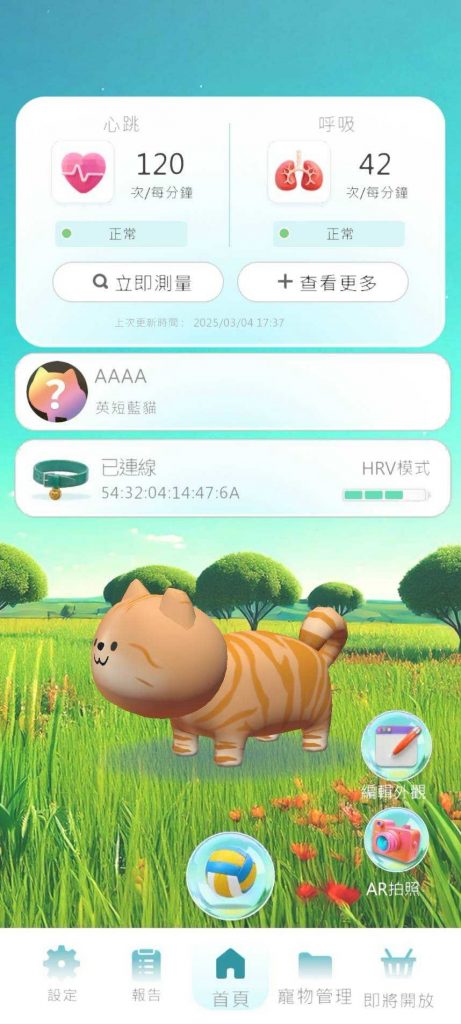
❷ A popup will show “Measuring”, takes about 75 seconds
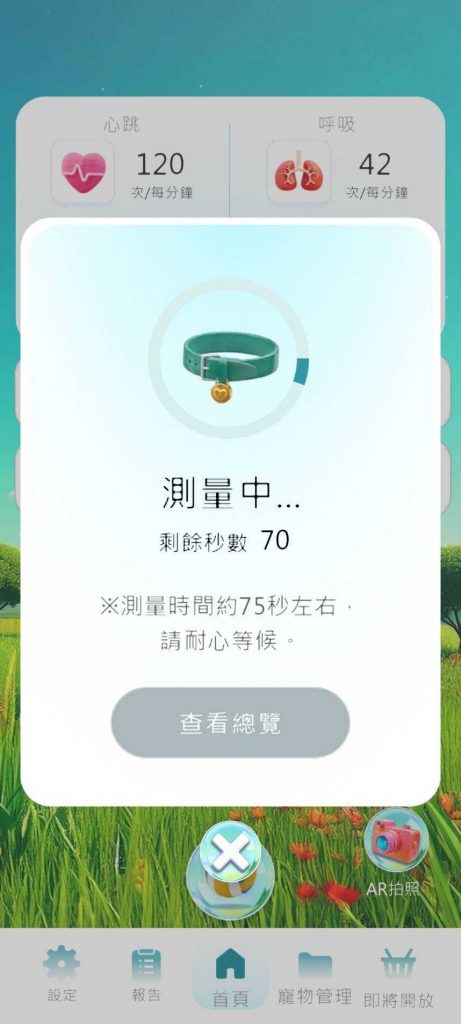
❸ When complete, tap “View Summary” to check results
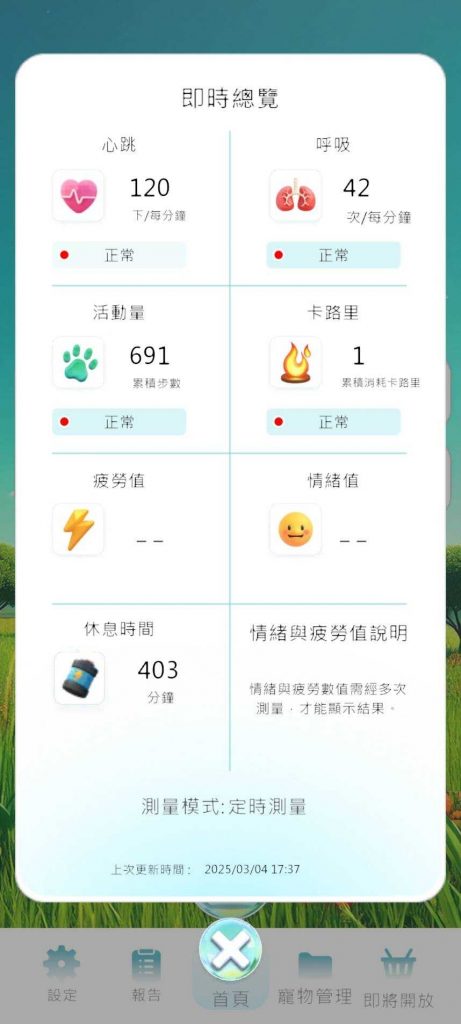
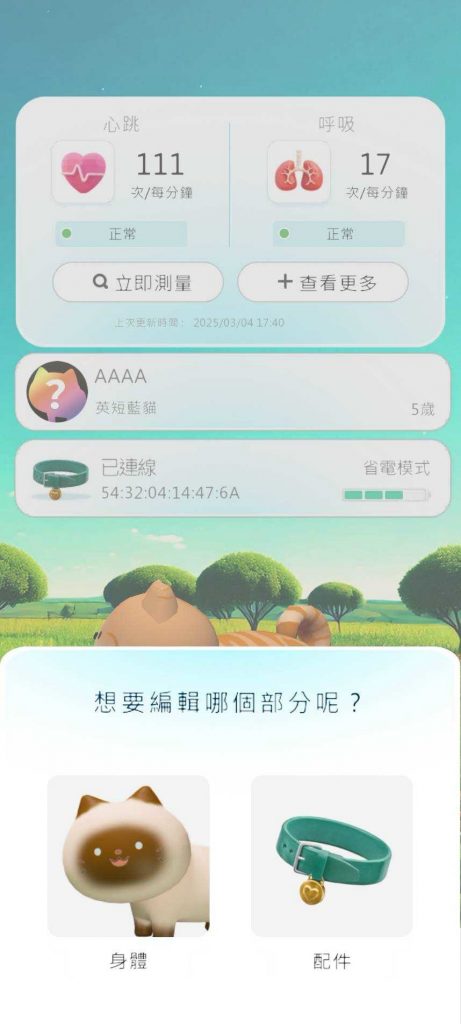
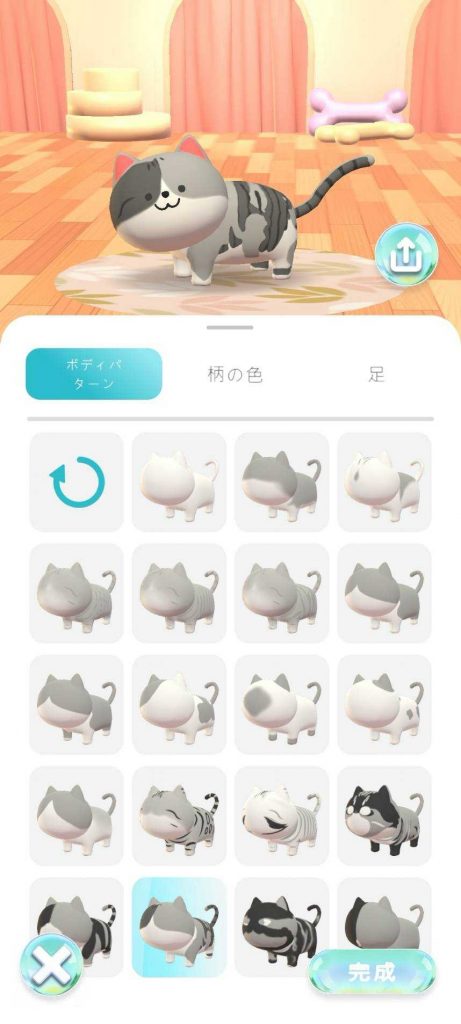
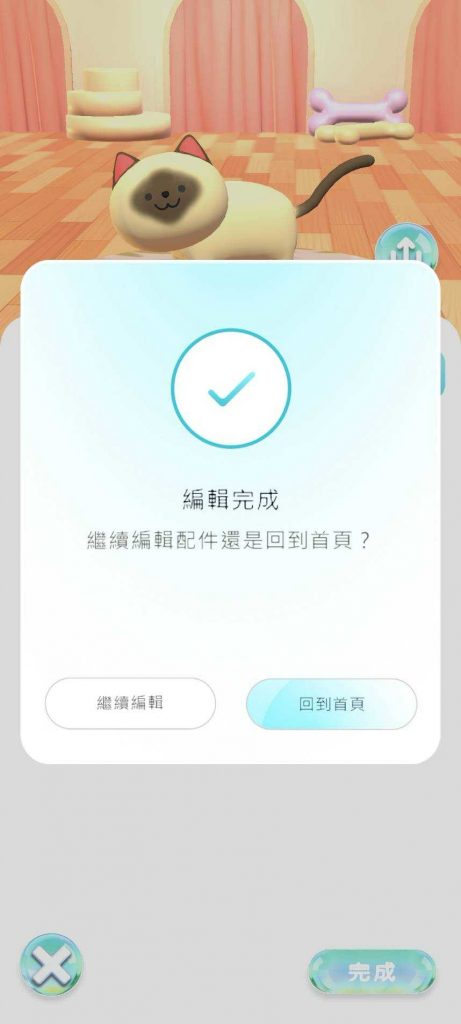
App Home – Edit Appearance
On the app home screen, tap the bottom-right “Edit Appearance” to customize your virtual pet’s look and color. After editing, tap to return to the home screen.
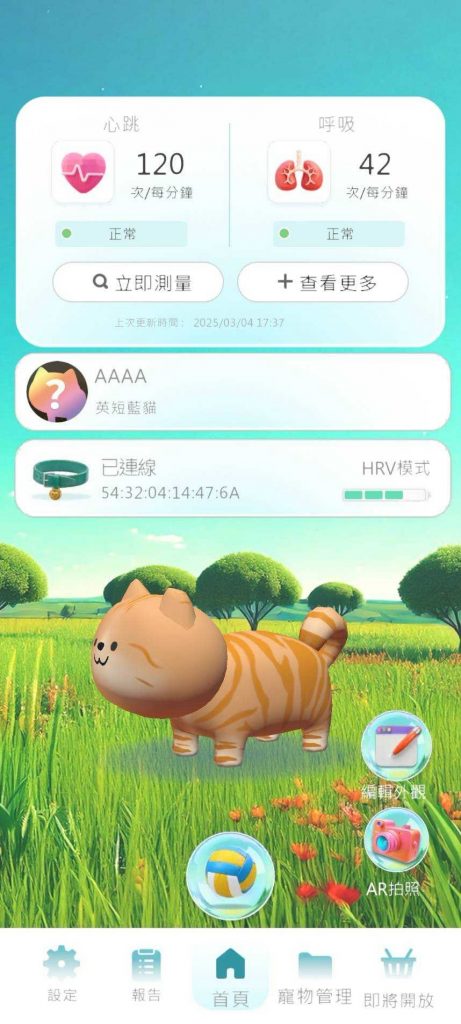
Measurement Mode Settings
❶ Tap the third-row “Collar Status”
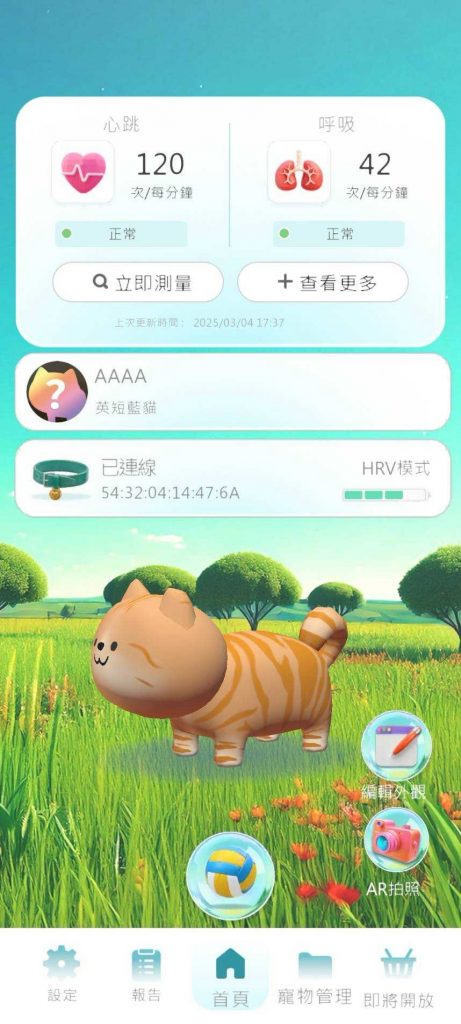
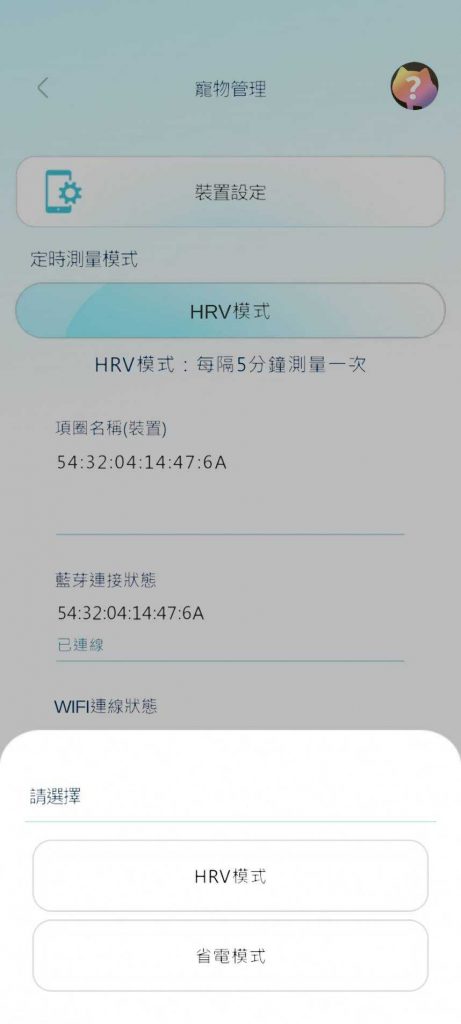
❷ Tap “Scheduled Measurement Mode”
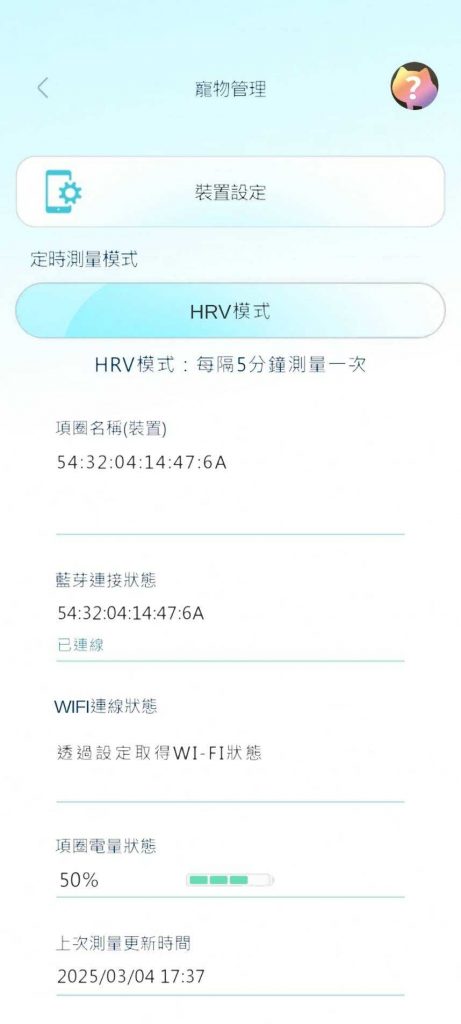
❸ Choose a mode
HRV Mode: measures every 5 minutes
Power Saving Mode: measures every hour
Virtual Pet Game
❶ Tap the ball icon at the bottom center
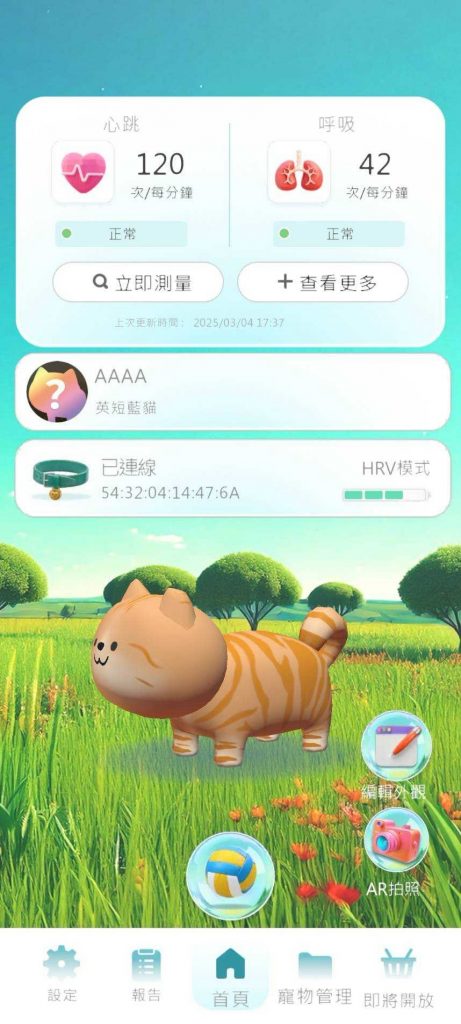
❷ Choose either a ball or canned food
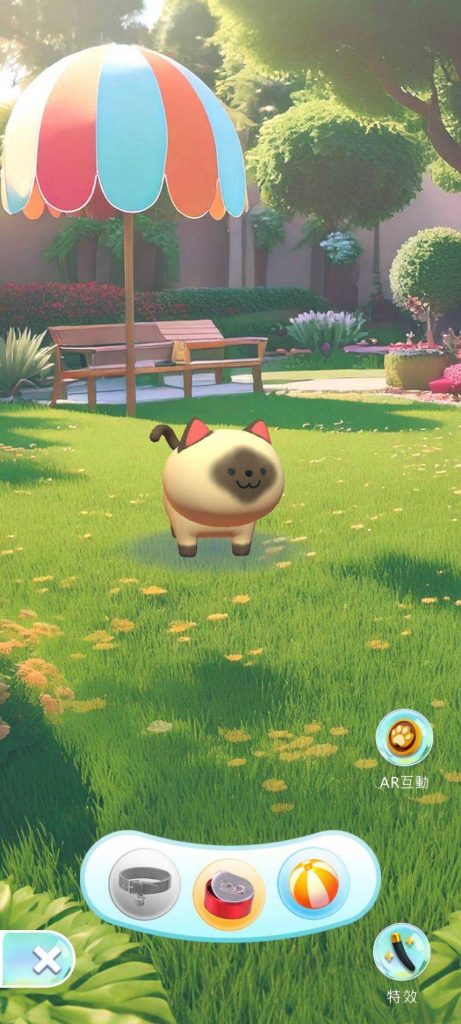
❸ Interact by feeding canned food
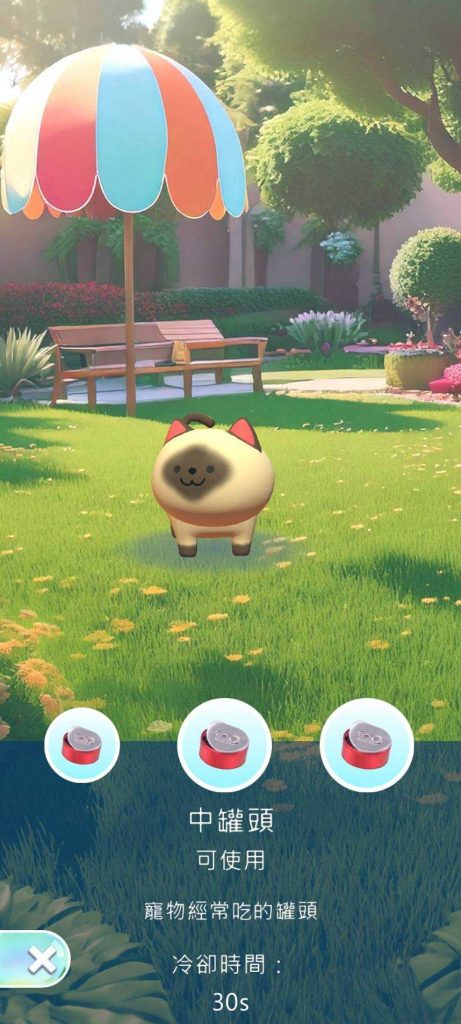
❹ Interact with throw-and-fetch or frisbee play

Pet Info Settings
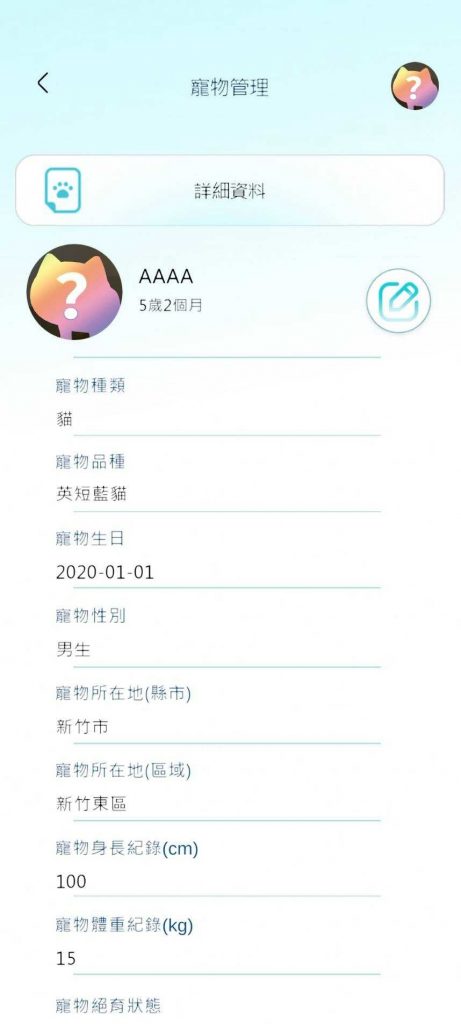
❶ Tap the second-row “Pet Status Management”
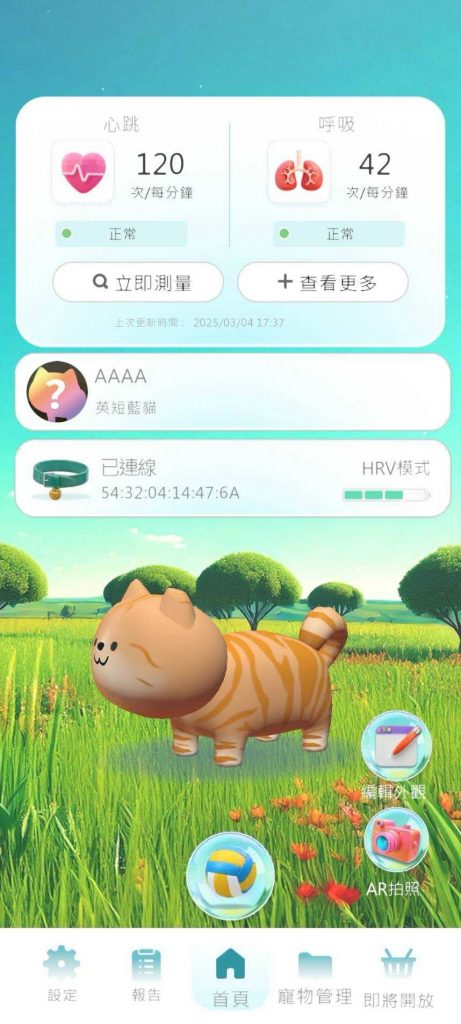
❷ Tap the pencil icon on the right to edit pet info
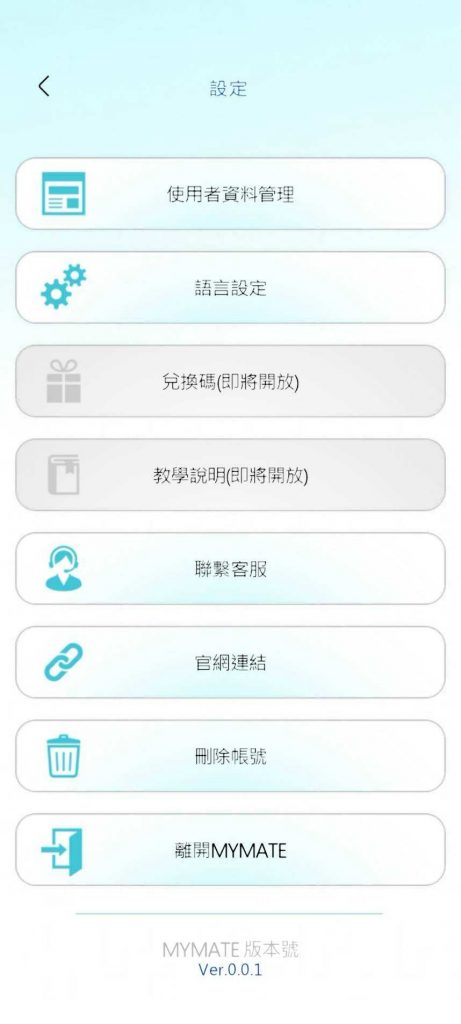
Settings
❶ Tap the bottom-left “Settings”
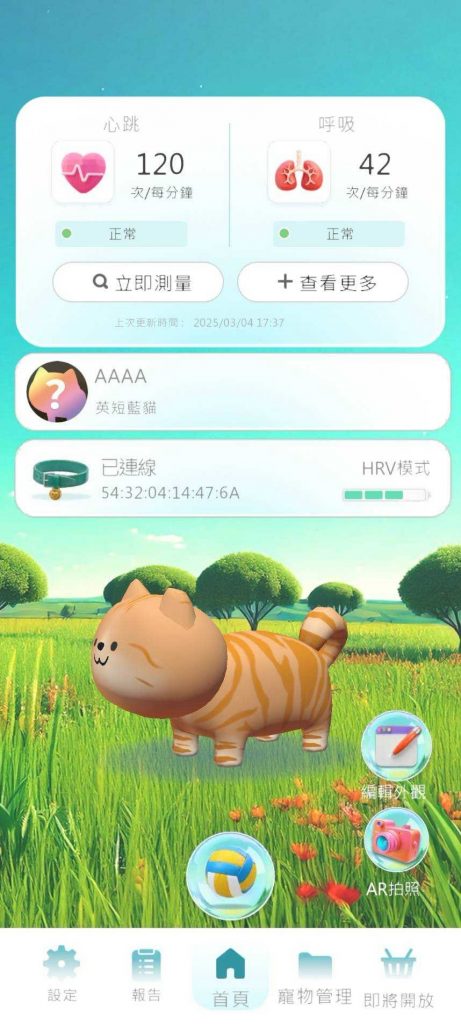
❷ Select functions as needed